QR
Upload from a phone
Guests scan the QR code and choose photos from their phone. They do not need to install an app.
Display guest photos on a screen at your venue as they arrive in your Pixiot gallery. Guests upload from their phones through a QR code or a link.
Set up the photo wall before the event starts. Share the QR code or upload link with attendees. Watch the screen fill as the event happens.
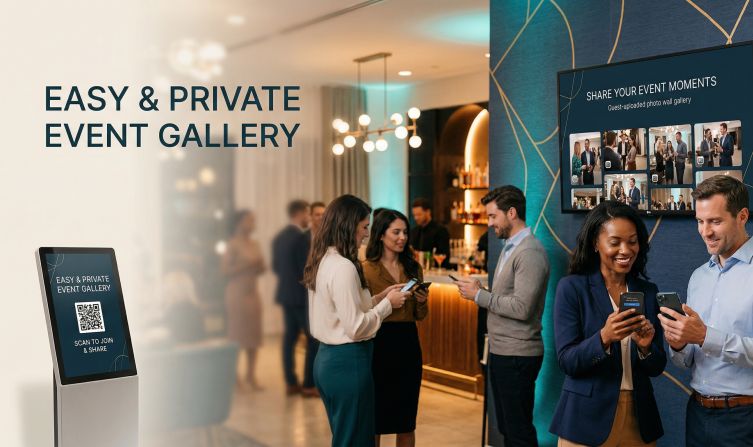
Give guests a place to share the photos they take. A QR code connects their phones to your event gallery.
Guests scan the QR code and choose photos from their phone. They do not need to install an app.
Each guest can add the photos they took, alongside the pictures from your photographer.
Keep the uploads together so you can browse and download them after the event.
Create the gallery before the event, then give guests its upload link or QR code.
Set up a private Pixiot gallery for your event.
Put the gallery QR code on table cards, signs, or a screen at the venue.
Guests upload from their phones. Browse the gallery during the event or download the photos afterwards.
There is a moment at every event where you need people to feel connected to something bigger than their own table conversation. A live photo wall does that — it takes what everyone is experiencing separately and puts it on one shared screen.
When guests see the QR code at the entrance, they understand the invitation immediately. They take a photo, scan the code, upload it — and thirty seconds later it is on the screen at the front of the room.
This creates a feedback loop: the more photos that appear, the more guests want to contribute.
A live photo wall adds engagement at any kind of gathering. The setup is the same regardless of event type: create a Pixiot gallery, open the photo wall view on a screen, and share the upload link.
Unlike the event schedule on the lobby screen, the photo wall is something guests look for. They want to see if their photo made it up. That curiosity drives participation all evening.
This is a strong fit for organizers who want more participation, cleaner collection, and less post-event chaos.
The more people involved, the more valuable simplicity becomes.
A central gallery gives you a fuller story of the event.
From weddings to team-building days, a live photo wall gives every attendee a visible stake in the event.
Common questions about setting up a live photo wall with Pixiot.
They scan the QR code or open the gallery link on their phone, then follow the upload steps in their browser.
Put it where guests will see it: on table cards, near the entrance, or on a screen at the venue.
No. They can upload through the browser on their phone.
Yes. Photos are collected in your private Pixiot gallery.
Launch a private gallery, make access obvious, and collect stronger memories with a path people will actually use.